> ## Documentation Index
> Fetch the complete documentation index at: https://docs.trykondo.com/llms.txt
> Use this file to discover all available pages before exploring further.
# Notion
Notion integration requires a Business tier plan to be enabled
### Step 1: Create a new Notion database
1. Create a new database
2. Create one column (any name / type will work)
3. Click ‘Share’ and copy URL
### Step 2: Paste in Kondo
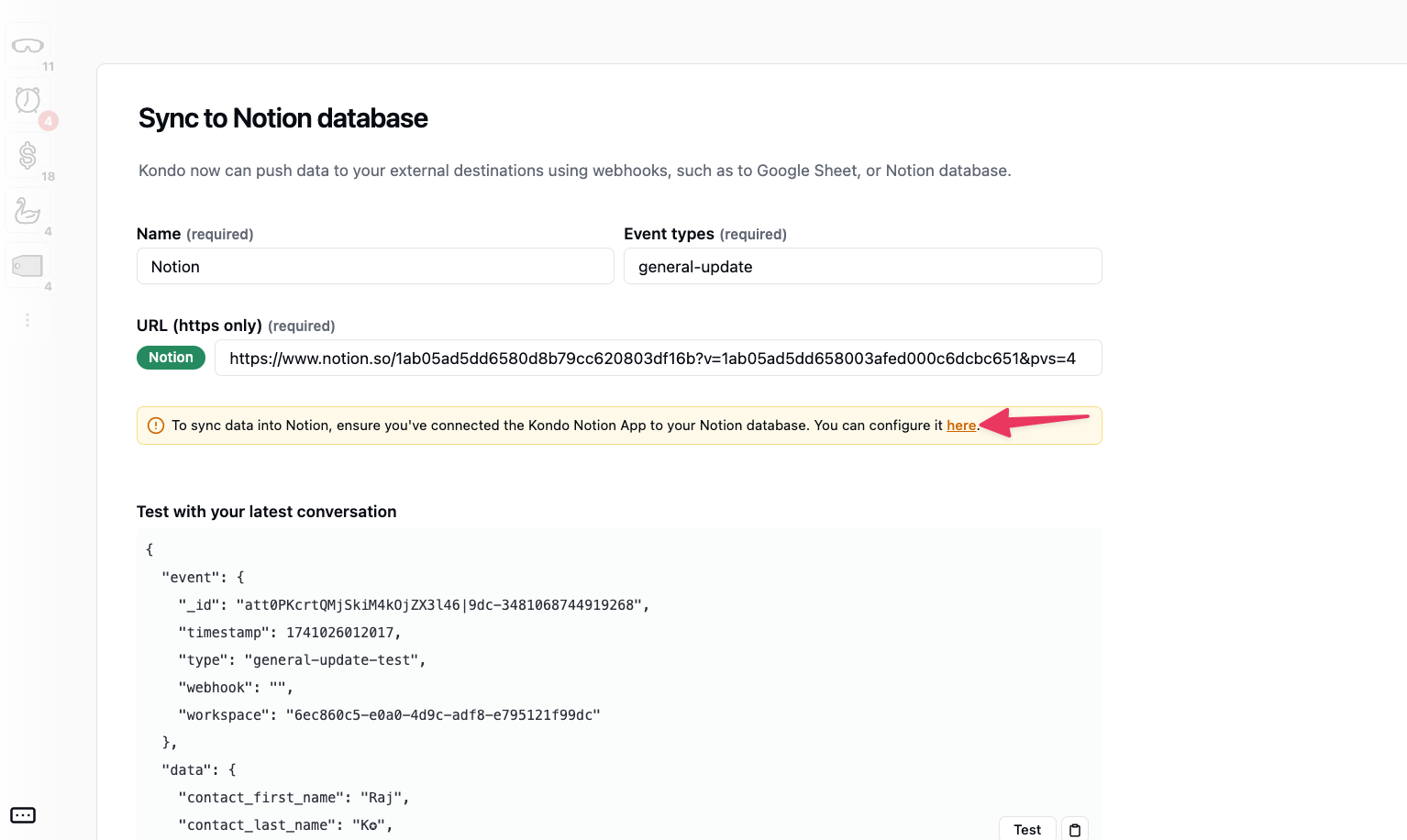
* go to [app.trykondo.com/webhooks/new](http://app.trykondo.com/webhooks/new) or click on the ⚡ in the bottom right menu
* paste the URL
* Click “configure it here’ and grant access to the database
* Select your update preferences
* general-update checked: will update the sheet **every time there is a change** in Kondo e.g. new messages sent, received, labels or notes updated etc.
* general-update un-checked: will only update the sheet upon manual triggering of sync
### Step 3: Test and save
Scroll down and click ‘Test and Save’
### Step 4: Manually trigger a sync
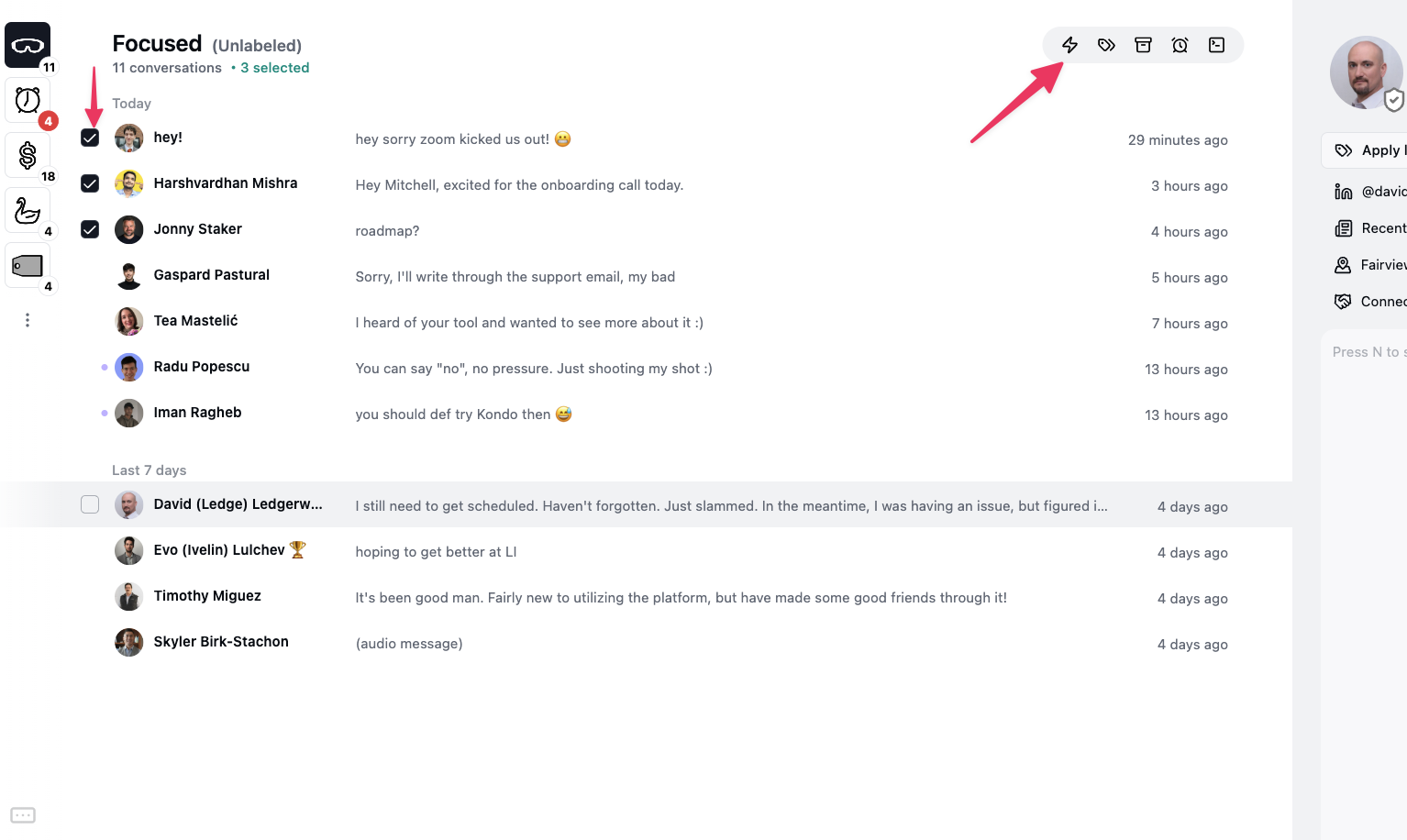
Once you have at least 1 destination set up, you can trigger a sync by selecting a few rows and clicking the ⚡ button or with Cmd + K > Sync
 * Select your update preferences
* general-update checked: will update the sheet **every time there is a change** in Kondo e.g. new messages sent, received, labels or notes updated etc.
* general-update un-checked: will only update the sheet upon manual triggering of sync
### Step 3: Test and save
Scroll down and click ‘Test and Save’
### Step 4: Manually trigger a sync
Once you have at least 1 destination set up, you can trigger a sync by selecting a few rows and clicking the ⚡ button or with Cmd + K > Sync

* Select your update preferences
* general-update checked: will update the sheet **every time there is a change** in Kondo e.g. new messages sent, received, labels or notes updated etc.
* general-update un-checked: will only update the sheet upon manual triggering of sync
### Step 3: Test and save
Scroll down and click ‘Test and Save’
### Step 4: Manually trigger a sync
Once you have at least 1 destination set up, you can trigger a sync by selecting a few rows and clicking the ⚡ button or with Cmd + K > Sync
