> ## Documentation Index
> Fetch the complete documentation index at: https://docs.trykondo.com/llms.txt
> Use this file to discover all available pages before exploring further.
# Google Sheets
Sheets integration requires a Business tier plan to be enabled
### Step 1: Install Google Sheets Add-On
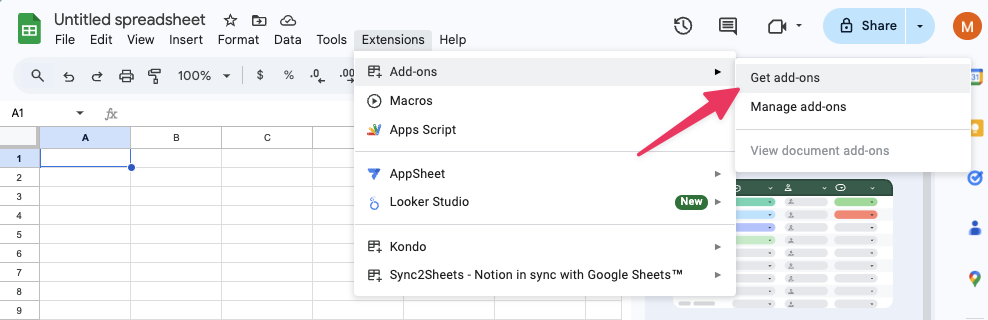
look for Kondo in the Google Workspace Marketplace or use this link: [https://workspace.google.com/marketplace/app/kondo/1020633171566](https://workspace.google.com/marketplace/app/kondo/1020633171566)
 ### Step 2: Setup webhook
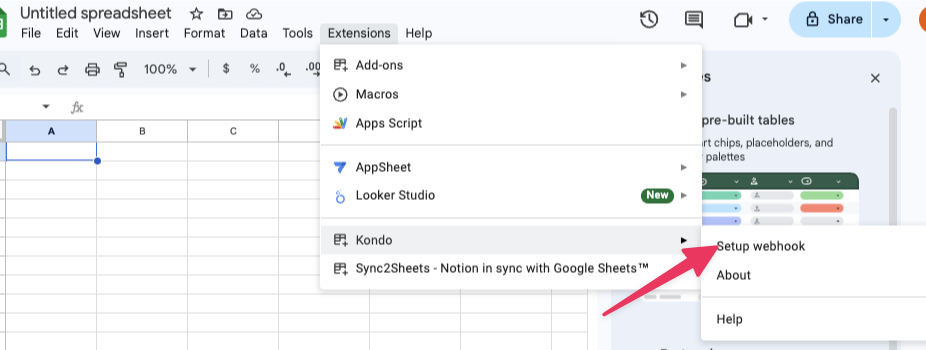
Go to extensions > Kondo > Setup webhook in the toolbar
### Step 2: Setup webhook
Go to extensions > Kondo > Setup webhook in the toolbar
 ### Step 3: Activate the webhook
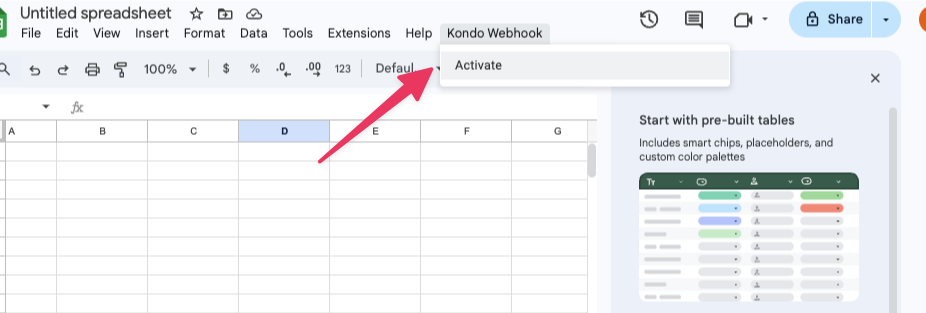
Refresh the google sheet. You will see a new toolbar item 'Kondo Webhook'. Click to activate.
### Step 3: Activate the webhook
Refresh the google sheet. You will see a new toolbar item 'Kondo Webhook'. Click to activate.
 ### Step 4: Connect to Kondo
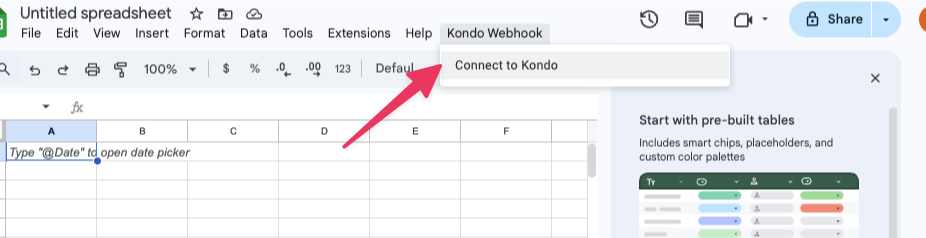
Click on Connect to Kondo and you will be redirected back to Kondo to finish setting up your sheets sync
**\_\*\*\* If nothing happens, look for a blocked pop up in your browser! \_**
### Step 4: Connect to Kondo
Click on Connect to Kondo and you will be redirected back to Kondo to finish setting up your sheets sync
**\_\*\*\* If nothing happens, look for a blocked pop up in your browser! \_**
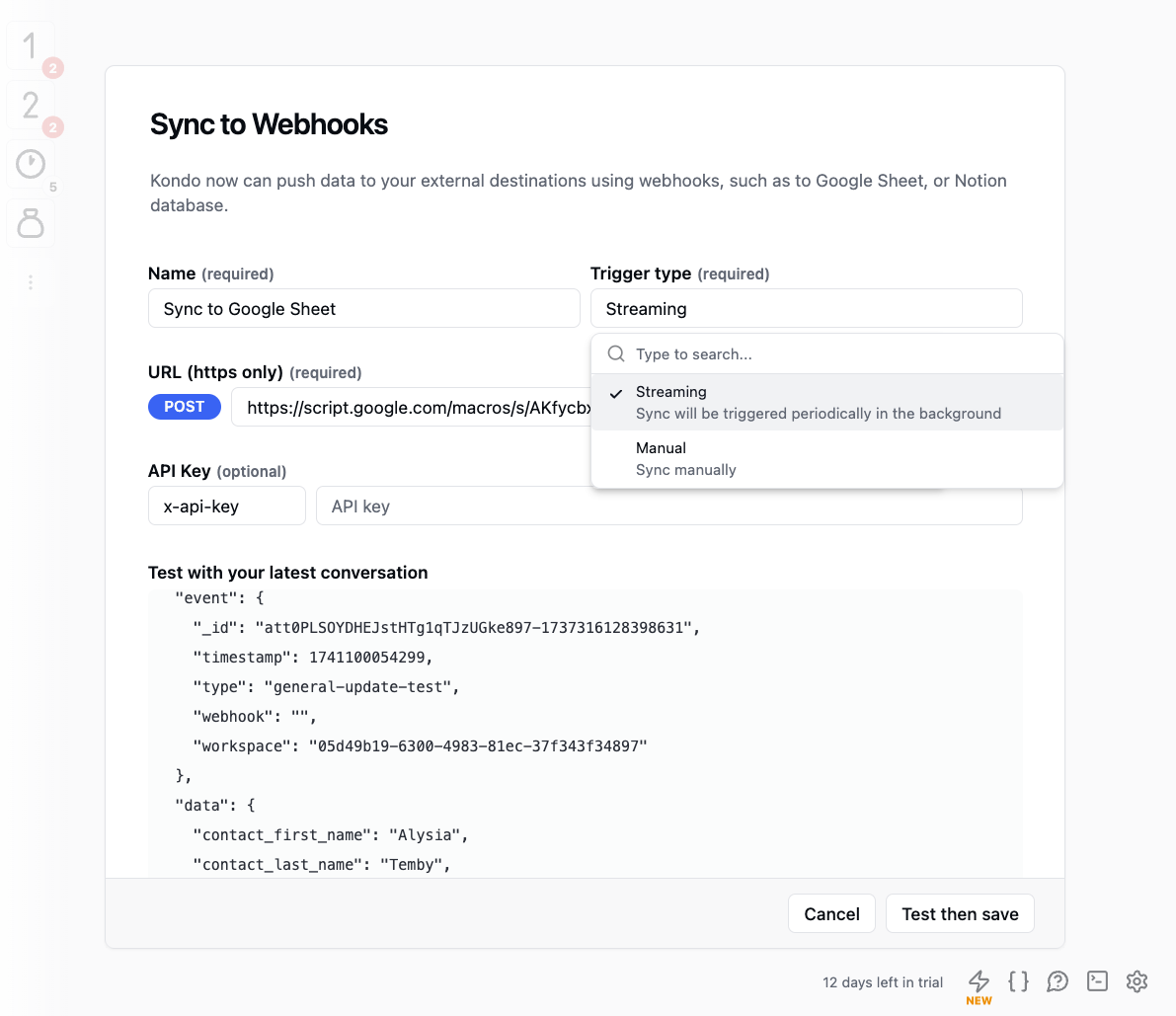
 ### Step 5. Select trigger type
There are two ways you can trigger syncs: streaming, and manual
* streaming: will update the sheet every time there is a change in Kondo e.g. new messages sent, received, labels or notes updated etc.
* manual: will only update the sheet upon manual triggering of sync
### Step 5. Select trigger type
There are two ways you can trigger syncs: streaming, and manual
* streaming: will update the sheet every time there is a change in Kondo e.g. new messages sent, received, labels or notes updated etc.
* manual: will only update the sheet upon manual triggering of sync
 ### Step 6: Manually trigger a sync
Once you have at least 1 destination set up, you can trigger a sync by selecting a few rows and clicking the ⚡ button or with Cmd + K > Sync
### Note on syncing conversation history
Kondo syncs conversation history in two ways
1. latest message: this is synced in streaming mode or when you trigger syncs in the inbox list
2. entire conversation: this is synced ONLY when you trigger a sync within an individual conversation
### Step 6: Manually trigger a sync
Once you have at least 1 destination set up, you can trigger a sync by selecting a few rows and clicking the ⚡ button or with Cmd + K > Sync
### Note on syncing conversation history
Kondo syncs conversation history in two ways
1. latest message: this is synced in streaming mode or when you trigger syncs in the inbox list
2. entire conversation: this is synced ONLY when you trigger a sync within an individual conversation