> ## Documentation Index
> Fetch the complete documentation index at: https://docs.trykondo.com/llms.txt
> Use this file to discover all available pages before exploring further.
# Webhooks
Webhooks require a Business tier plan to be enabled
You can push data on your LinkedIn conversations from Kondo to your own systems using webhooks.
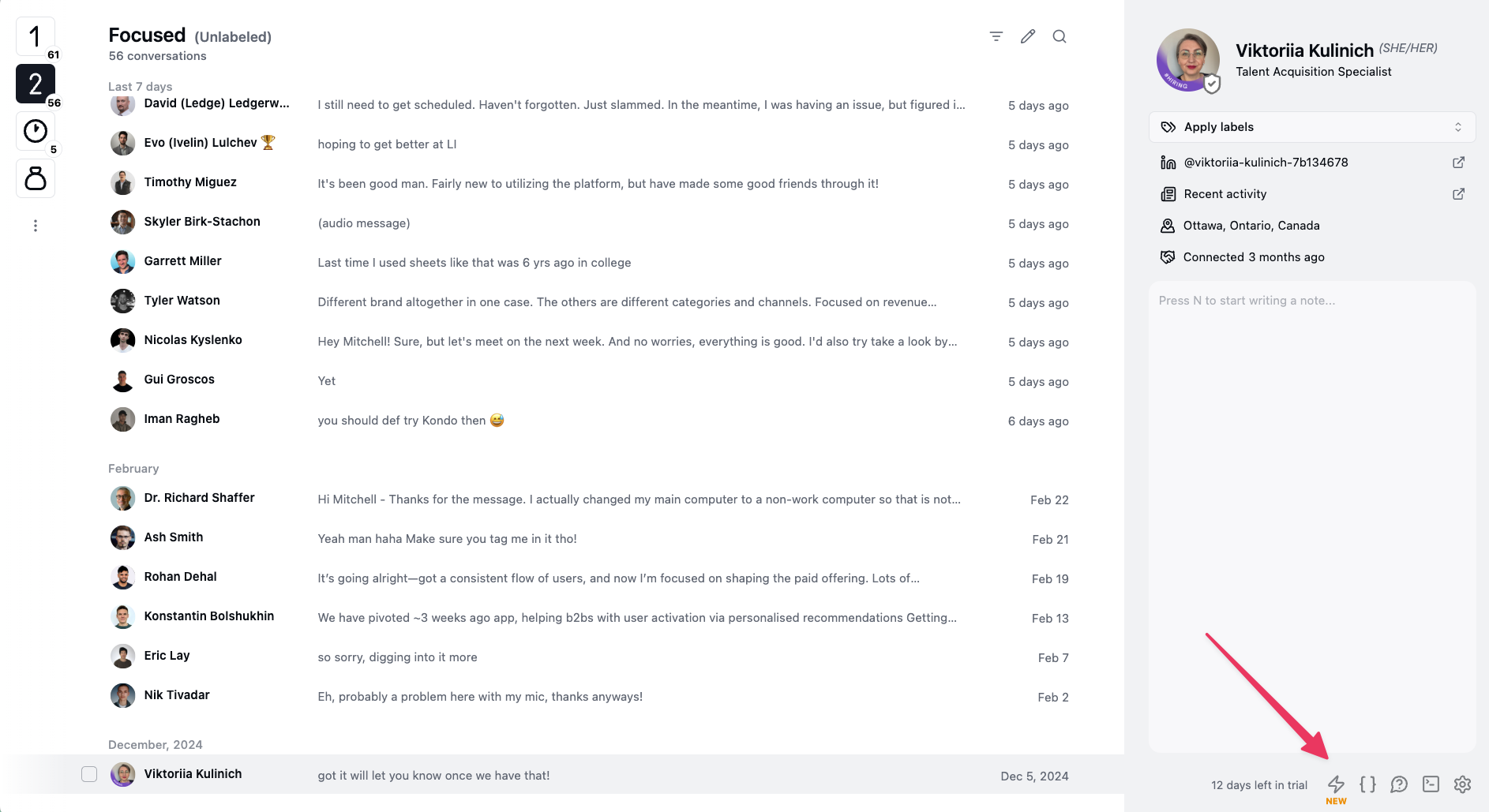
To set up webhooks, simply go to [app.trykondo.com/webhooks](http://app.trykondo.com/webhooks) or look for the ⚡ button in the bottom right menu
 ### When we post data
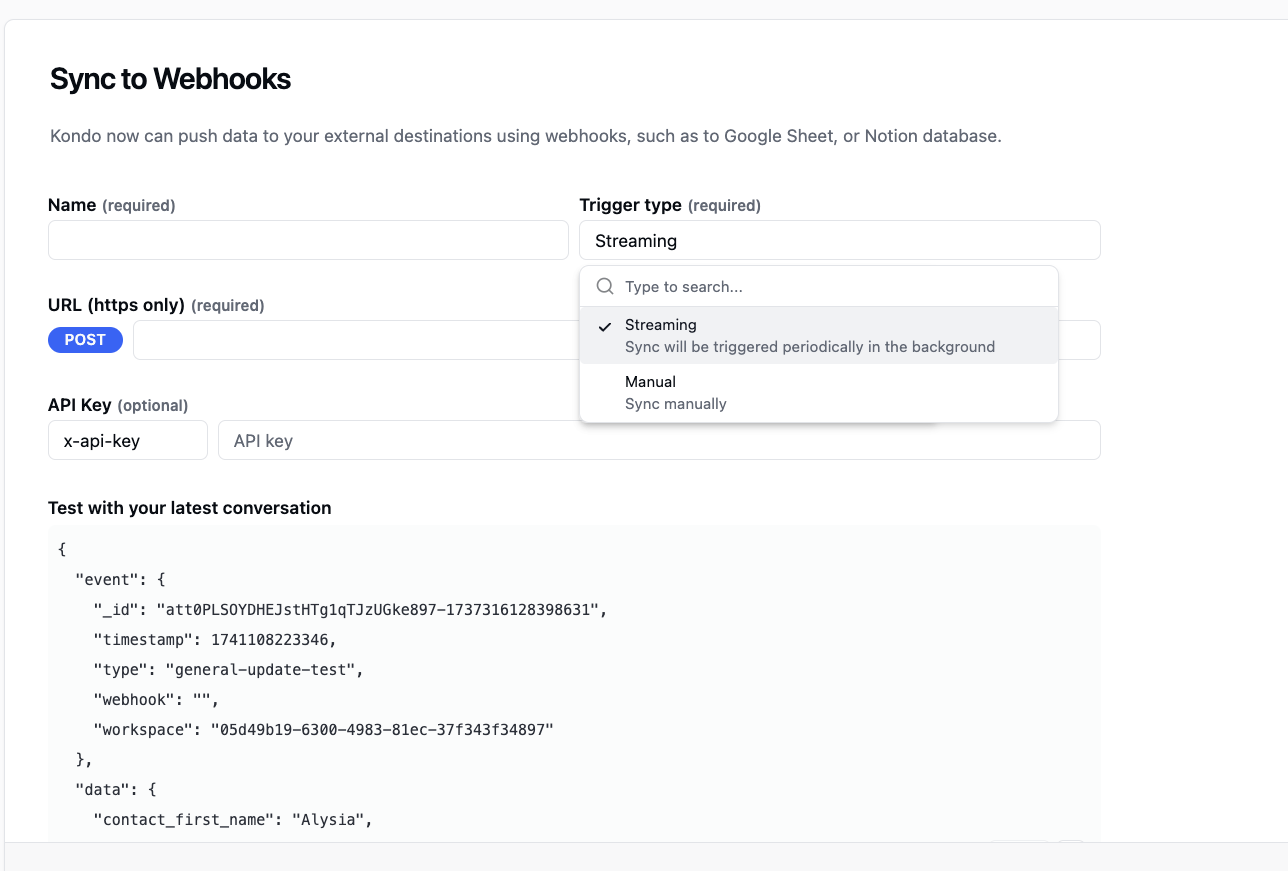
There are two ways you can trigger syncs: streaming, and manual
* streaming: will update the sheet every time there is a change in Kondo e.g. new messages sent, received, labels or notes updated etc.
* manual: will only update the sheet upon manual triggering of sync through Cmd + K -> Sync or clicking the ⚡ button.
### When we post data
There are two ways you can trigger syncs: streaming, and manual
* streaming: will update the sheet every time there is a change in Kondo e.g. new messages sent, received, labels or notes updated etc.
* manual: will only update the sheet upon manual triggering of sync through Cmd + K -> Sync or clicking the ⚡ button.
 ### What kind of data we post
We sync these fields to your destination
* LinkedIn URL
* LinkedIn headline
* LinkedIn location
* Kondo labels
* Kondo notes
* Kondo URL
* Latest conversation timestamp
* Latest message\*
* Conversation history\*
* For a full sample of all the data we post and the format, see [app.trykondo.com/webhooks/new](http://app.trykondo.com/webhooks/new)
\*Kondo syncs conversation history in two ways
1. latest message: this is synced in streaming mode or when you trigger syncs individually or in bulk in the inbox list
2. entire conversation: this is synced ONLY when you trigger a sync by clicking ⚡ or Cmd + K -> Sync while within a specific chat chat
### See also
Use Kondo's Sheet Add On
Use Kondo's Notion plugin
### What kind of data we post
We sync these fields to your destination
* LinkedIn URL
* LinkedIn headline
* LinkedIn location
* Kondo labels
* Kondo notes
* Kondo URL
* Latest conversation timestamp
* Latest message\*
* Conversation history\*
* For a full sample of all the data we post and the format, see [app.trykondo.com/webhooks/new](http://app.trykondo.com/webhooks/new)
\*Kondo syncs conversation history in two ways
1. latest message: this is synced in streaming mode or when you trigger syncs individually or in bulk in the inbox list
2. entire conversation: this is synced ONLY when you trigger a sync by clicking ⚡ or Cmd + K -> Sync while within a specific chat chat
### See also
Use Kondo's Sheet Add On
Use Kondo's Notion plugin